



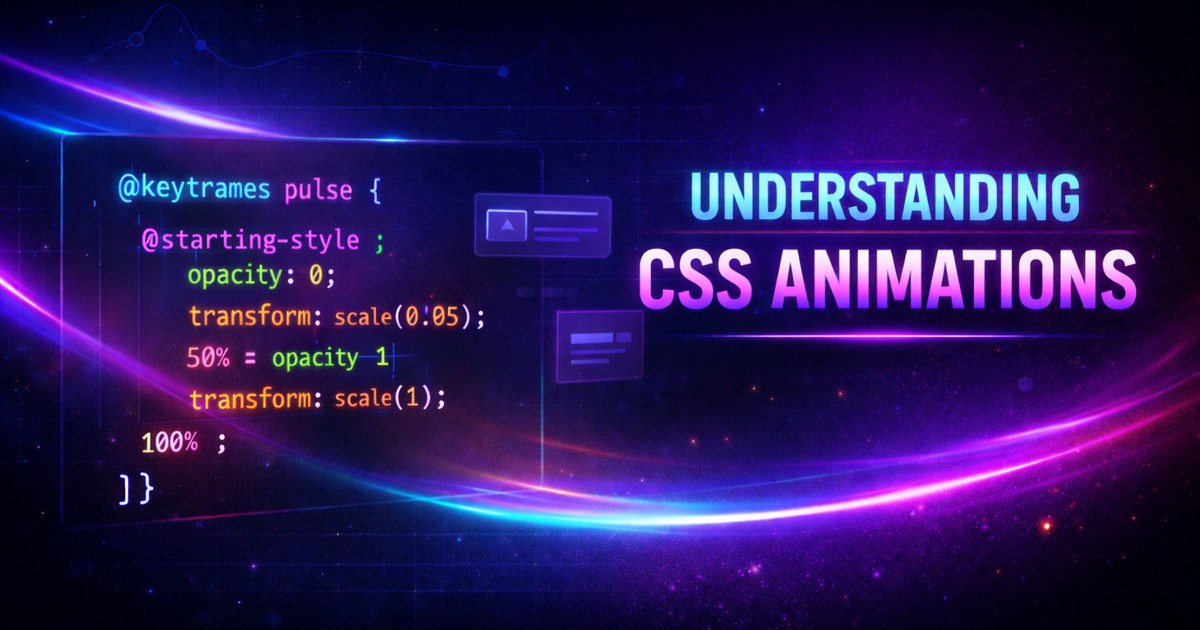
Understanding CSS Animations
CSS animations have evolved dramatically over the past few years. With new features like scroll-driven animations and view transitions, we can create more engaging and performant web experiences than ever before.
The Fundamentals
At its core, CSS animation consists of two main components:
- Keyframes - Define the animation’s intermediate steps
- Animation Properties - Control timing, duration, and behavior
@keyframes fadeIn {
  from {
    opacity: 0;
  }
  to {
    opacity: 1;
  }
}

.element {
  animation: fadeIn 0.3s ease-out;
}
Modern Animation Techniques
Scroll-Driven Animations
The new animation-timeline property allows animations to be driven by scroll position:
@keyframes reveal {
  from {
    opacity: 0;
    transform: translateY(50px);
  }
  to {
    opacity: 1;
    transform: translateY(0);
  }
}

.scroll-reveal {
  animation: reveal linear both;
  animation-timeline: view();
  animation-range: entry 0% cover 30%;
}
View Transitions API
The View Transitions API provides native browser support for smooth transitions between page states:
document.startViewTransition(() => {
  // Update the DOM
  updateContent();
});
@starting-style: Animating Entry Transitions
The @starting-style rule is a game-changer for animating elements when they first appear in the DOM. Before this feature, you couldn’t transition elements from display: none to display: block because CSS transitions don’t work on discrete properties.
The Problem It Solves
Previously, animating an element’s entrance required JavaScript workarounds:
/* ❌ This doesn't work - no transition happens */
.dialog {
  display: none;
  opacity: 0;
  transition: opacity 0.3s;
}

.dialog.open {
  display: block;
  opacity: 1;
}
How @starting-style Works
@starting-style defines the initial styles for an element when it first appears:
.dialog {
  opacity: 1;
  transform: translateY(0);
  transition:
    opacity 0.3s,
    transform 0.3s,
    display 0.3s allow-discrete;
}

/* Starting styles for when element enters the DOM */
@starting-style {
  .dialog {
    opacity: 0;
    transform: translateY(-20px);
  }
}
The key is using allow-discrete on the transition property to enable transitions on discrete properties like display.
Practical Examples
1. Fade-in Dialog
dialog {
  opacity: 1;
  scale: 1;
  transition:
    opacity 0.3s ease-out,
    scale 0.3s ease-out,
    overlay 0.3s ease-out allow-discrete,
    display 0.3s ease-out allow-discrete;
}

@starting-style {
  dialog[open] {
    opacity: 0;
    scale: 0.9;
  }
}

dialog:not([open]) {
  opacity: 0;
  scale: 0.9;
  pointer-events: none;
}
2. Slide-in Sidebar
.sidebar {
  translate: 0 0;
  transition:
    translate 0.4s cubic-bezier(0.34, 1.56, 0.64, 1),
    display 0.4s allow-discrete;
}

@starting-style {
  .sidebar {
    translate: -100% 0;
  }
}

.sidebar:not(.open) {
  translate: -100% 0;
  display: none;
}
3. Expanding Dropdown
.dropdown-menu {
  opacity: 1;
  transform: scaleY(1);
  transform-origin: top;
  transition:
    opacity 0.2s,
    transform 0.2s,
    display 0.2s allow-discrete;
}

@starting-style {
  .dropdown-menu {
    opacity: 0;
    transform: scaleY(0);
  }
}

.dropdown-menu:not([open]) {
  opacity: 0;
  transform: scaleY(0);
  display: none;
}
Combining with Popover API
@starting-style works beautifully with the Popover API:
<button popovertarget="my-popover">Show Popover</button>
<div id="my-popover" popover>
  <p>This animates in smoothly!</p>
</div>
[popover] {
opacity: 1;
transform: translateY(0);
transition:
opacity 0.3s,
transform 0.3s,
overlay 0.3s allow-discrete,
display 0.3s allow-discrete;
}
@starting-style {
[popover]:popover-open {
opacity: 0;
transform: translateY(10px);
}
}
[popover]:not(:popover-open) {
opacity: 0;
transform: translateY(10px);
}Important Considerations
1. Browser Support
- Chrome/Edge: ✅ v117+ (September 2023)
- Firefox: ✅ v129+ (July 2024)
- Safari: ✅ v17.5+ (May 2024)
2. Use allow-discrete
Always include allow-discrete when transitioning discrete properties:
transition:
  display 0.3s allow-discrete,
  opacity 0.3s;
3. Exit Animations
Define the exit state explicitly:
.element:not(.active) {
  opacity: 0;
  display: none;
}
4. Performance
@starting-style is performant because it uses native CSS transitions. However, still follow animation best practices:
/* ✅ Good - GPU-accelerated properties */
@starting-style {
  .element {
    opacity: 0;
    transform: translateY(20px);
  }
}

/* ⚠️ Avoid - triggers layout */
@starting-style {
  .element {
    margin-top: 20px;
    width: 50%;
  }
}
Common Patterns
Toast Notifications
.toast {
  opacity: 1;
  translate: 0 0;
  transition:
    opacity 0.3s,
    translate 0.3s,
    display 0.3s allow-discrete;
}

@starting-style {
  .toast {
    opacity: 0;
    translate: 0 -20px;
  }
}

.toast.closing {
  opacity: 0;
  translate: 20px 0;
}
Modal Overlays
.overlay {
  opacity: 1;
  backdrop-filter: blur(4px);
  transition:
    opacity 0.4s,
    backdrop-filter 0.4s,
    overlay 0.4s allow-discrete,
    display 0.4s allow-discrete;
}

@starting-style {
  .overlay {
    opacity: 0;
    backdrop-filter: blur(0);
  }
}

.overlay:not(.active) {
  opacity: 0;
  backdrop-filter: blur(0);
  display: none;
}
Accordion Items
.accordion-content {
  max-height: 500px;
  opacity: 1;
  transition:
    max-height 0.3s ease-out,
    opacity 0.3s,
    display 0.3s allow-discrete;
}

@starting-style {
  .accordion-content {
    max-height: 0;
    opacity: 0;
  }
}

.accordion-content:not(.expanded) {
  max-height: 0;
  opacity: 0;
  display: none;
}
When to Use @starting-style
Use it for:
- Modal dialogs and popovers
- Dropdown menus
- Toast notifications
- Sidebar navigation
- Tooltips
- Any element transitioning from
display: none
Don’t use it for:
- Elements already in the DOM (use regular transitions)
- Complex multi-step animations (use
@keyframes) - Scroll-driven animations (use
animation-timeline)
Performance Considerations
GPU Acceleration
Stick to animating these properties for best performance:
transformopacityfilter
These properties can be animated on the GPU, avoiding expensive layout recalculations.
Will-Change Property
Use will-change sparingly to hint to the browser about upcoming animations:
.animated-element {
  will-change: transform;
}
Important: Remove will-change after the animation completes to free up resources.
Animation Timing Functions
Understanding easing functions is crucial for natural-feeling animations:
/* Built-in easings */
.ease-in {
  animation-timing-function: ease-in;
}
.ease-out {
  animation-timing-function: ease-out;
}
.ease-in-out {
  animation-timing-function: ease-in-out;
}

/* Custom cubic-bezier */
.custom {
  animation-timing-function: cubic-bezier(0.68, -0.55, 0.265, 1.55);
}
Accessibility
Always respect user preferences for reduced motion:
@media (prefers-reduced-motion: reduce) {
  * {
    animation-duration: 0.01ms !important;
    animation-iteration-count: 1 !important;
    transition-duration: 0.01ms !important;
  }
}
Advanced Patterns
Stagger Animations
Create cascading effects with CSS custom properties:
.stagger-item {
  animation: slideIn 0.5s ease-out;
  animation-delay: calc(var(--index) * 0.1s);
}
Orchestrated Animations
Combine multiple animations for complex effects:
.complex {
  animation:
    fadeIn 0.3s ease-out,
    slideUp 0.3s ease-out,
    scale 0.3s ease-out;
}
Browser Compatibility
- Scroll Timelines: Limited support (experimental)
- View Transitions: Chrome/Edge only (2026)
- Basic Animations: Universal support
Best Practices
- Keep it subtle - Animations should enhance, not distract
- Optimize for performance - Use GPU-accelerated properties
- Respect user preferences - Honor
prefers-reduced-motion - Test across devices - Performance varies significantly
- Provide fallbacks - Progressive enhancement is key
Conclusion
CSS animations are a powerful tool for creating engaging web experiences. By understanding the fundamentals and staying current with modern features, you can create animations that are both beautiful and performant.
The future of web animation is bright, with new APIs and features landing regularly. Stay curious and keep experimenting!
Browser support snapshot
Live support matrix for css-animation from
Can I Use.
Show static fallback image

Source: caniuse.com